Getting lost in a van is easier than you’d think — here’s the setup that keeps us on track.
1. The Navigation Problem Nobody Warns You About
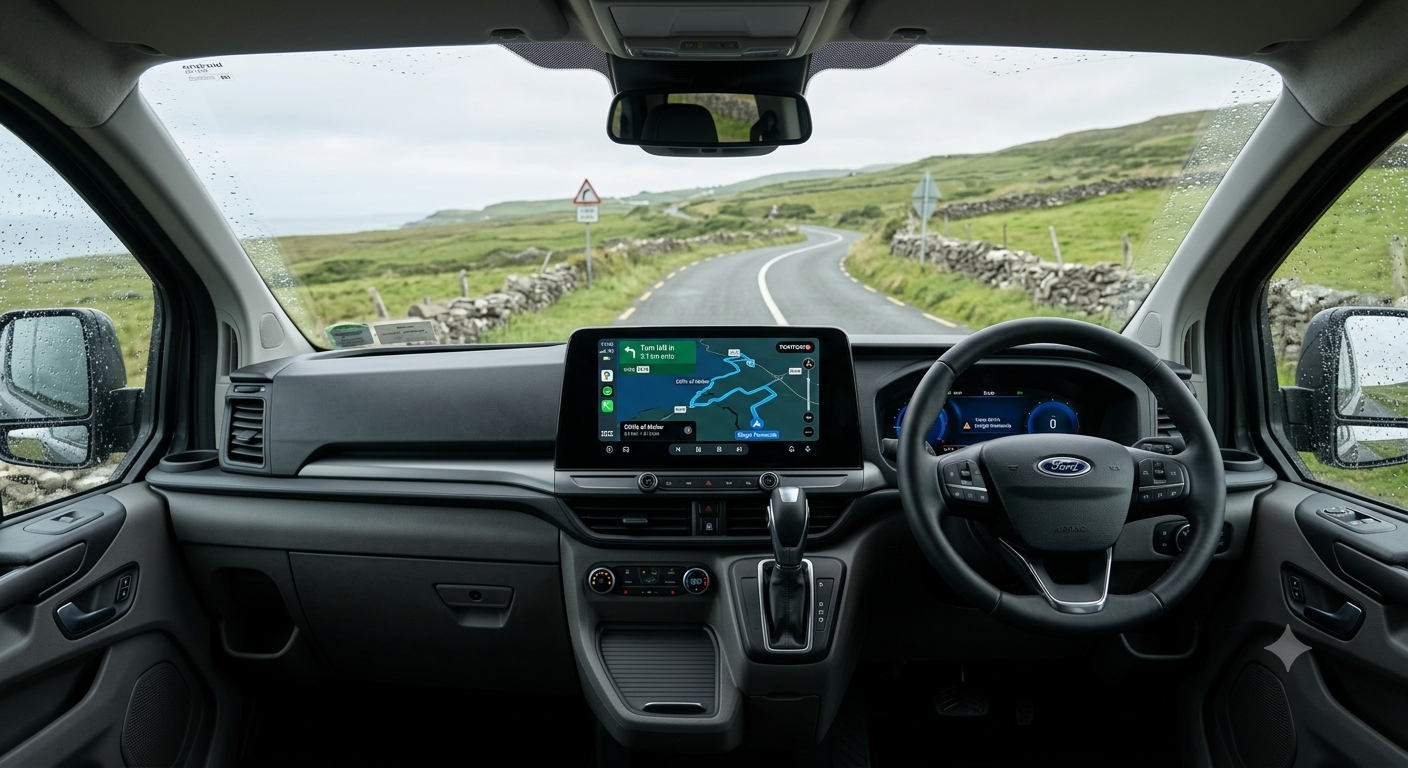
The moment you switch from a regular car to a van conversion like our Tourneo Custom, navigation stops being an afterthought. Suddenly there’s height, width, and weight to think about — and the app that handled your daily commute without a hitch can just as easily send you straight toward a bridge that’s ten centimeters too low.
Then there’s the on-the-road reality: editing a route while parked, squinting at a tiny screen, trying to add a stop or reroute around something. It’s rarely as simple as it should be.
This is the story of the systems we tried before landing on the one we actually trust — one where changing a route is just as easy as planning it in the first place.
2. The Usual Suspects
Before we get to our setup, it’s worth running through the main options most van lifers reach for first:
- Phone-based apps (Google Maps, Apple Maps, Waze): Excellent for everyday driving — free, and always current on traffic. The catch: no vehicle profiles for height or weight, and they’ll happily chew through your data and battery on a long day of driving.
- Dedicated GPS units: Purpose-built for exactly this. You can enter your van’s dimensions, and most work fully offline with preloaded maps — a real advantage once you’re out of signal range.
- Built-in vehicle navigation: Convenient in theory, but maps often lag behind, and the route-planning tools weren’t designed with multi-day trips in mind.
None of these solve the actual problem for us: planning a full route in advance, at a desk, with the whole trip laid out in front of us — not just the next turn.
3. Why We Plan on plan.tomtom.com
This is where our workflow really begins, and it has nothing to do with sitting in the driver’s seat. We plan every route on plan.tomtom.com, TomTom’s browser-based route planner. A few reasons it’s stuck with us:
- The full picture, upfront. We see the entire route on a proper screen, reorder stops, and fine-tune everything before we’ve even started the engine.
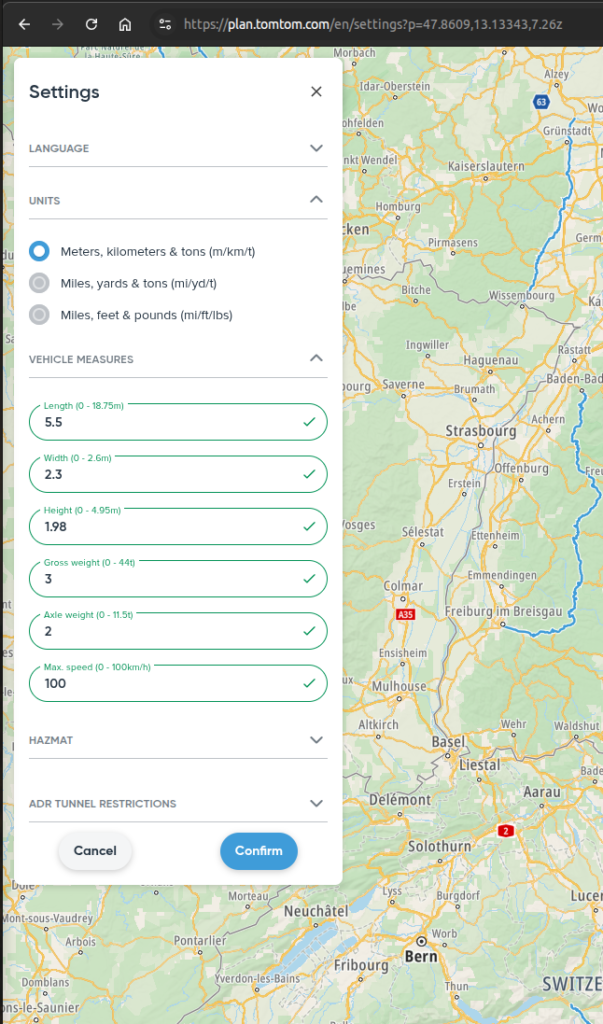
- Vehicle-aware routing. Set your van’s height, weight, and width once, and every route respects those limits from then on — no more guessing at bridge clearances.
- Waypoints without the hassle. Adding fuel stops, campsites, or detours takes a click, not ten minutes of fumbling with a touchscreen while parked.
- No app-switching once we’re moving. All the heavy planning happens beforehand, not while we’re tired and just want the device to tell us where to turn.
4. Getting the Route Into the Van: MyDrive Sync
A route is only useful if it actually makes it into the vehicle. That’s where TomTom MyDrive comes in — it connects our plan.tomtom.com account to our TomTom device (or the TomTom Go app), which means:
- Routes planned on a laptop sync automatically — no cables, no re-entering waypoints by hand.
- We can tweak a route mid-trip from a phone, and it pushes straight to the dash unit.
- Everything’s backed up to one account, so a device reset or replacement doesn’t mean losing our routes.
- Once synced, the route lives on the device itself — meaning it keeps guiding us with zero signal, deep in a valley or far off the grid, no active connection required.
The nice part: syncing is optional, and you decide per route. Every time you save a route on plan.tomtom.com, there’s a toggle called “Sync this route as a track with my devices.” Leave it on, and the route pushes automatically to every device signed into that TomTom account. Leave it off, and the route just sits quietly in your account under My Routes — handy for drafts, alternate options you’re still comparing, or routes you’re planning for someone else and don’t want cluttering your own dash.
To actually receive synced routes, your devices need to be set up for it once:
- On the TomTom Go app or a compatible GPS unit, go to Settings → TomTom Services (or TomTom account / MyDrive, depending on the device) and log in with your TomTom account — the same one you use on plan.tomtom.com.
- Make sure the device has an internet connection (Wi-Fi or mobile data) at least once after saving a route, so it can pull the update. After that, the route itself works fully offline.
- If a route ever doesn’t show up, signing out and back into the TomTom account on the device usually sorts it out — it’s the most common fix if a sync gets stuck.
It’s the missing link that turns “a route we planned” into “the route the van is actually driving” — with no friction in between, online or off.
5. Our Verdict
For quick errands, a phone app still does the job fine. But for real trip planning — routing a multi-day journey with a fully loaded van — the combination of plan.tomtom.com for planning and MyDrive for syncing has earned a permanent spot in our setup. It respects our van’s dimensions, keeps the planning off the tiny in-cab screen, and gets the route where it needs to be without extra steps.
„THE OVRTLND Gear from this post“
Watch the road trip
See Ireland from the driver's seat
Every stop on this blog is also on our YouTube channel — the drives, the detours and the van-life reality in between.
Subscribe on YouTube